 CloudCreate.ai
Simple Snip
Screenshots only. No network.
A minimal screenshot tool built natively for Apple silicon. Switch between displays, then save to the clipboard or a file. No need to install Rosetta.
As a fan of Snip, I was sorry to see it stop updating years ago, so I built this screenshot app myself. Simple Snip only takes screenshots. It runs natively on Apple silicon (M-series Macs).
Features
- Global shortcut ⌘⌥C, or open it from the menu bar
- Drag a region, or hover and click to capture a window
- Capture a full screen, and choose among multiple displays
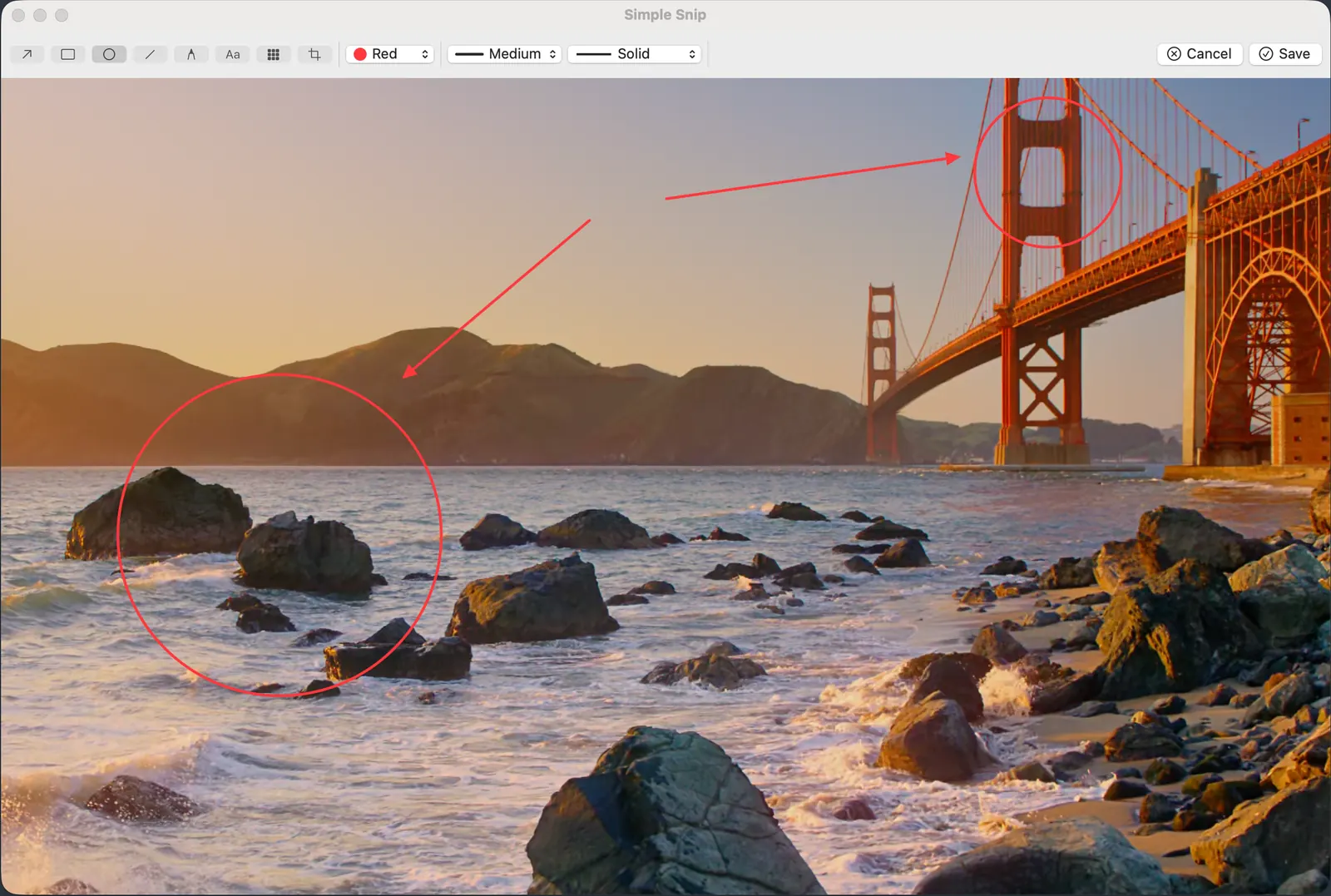
- Arrow, rectangle, oval, line, pen, text, mosaic, and crop
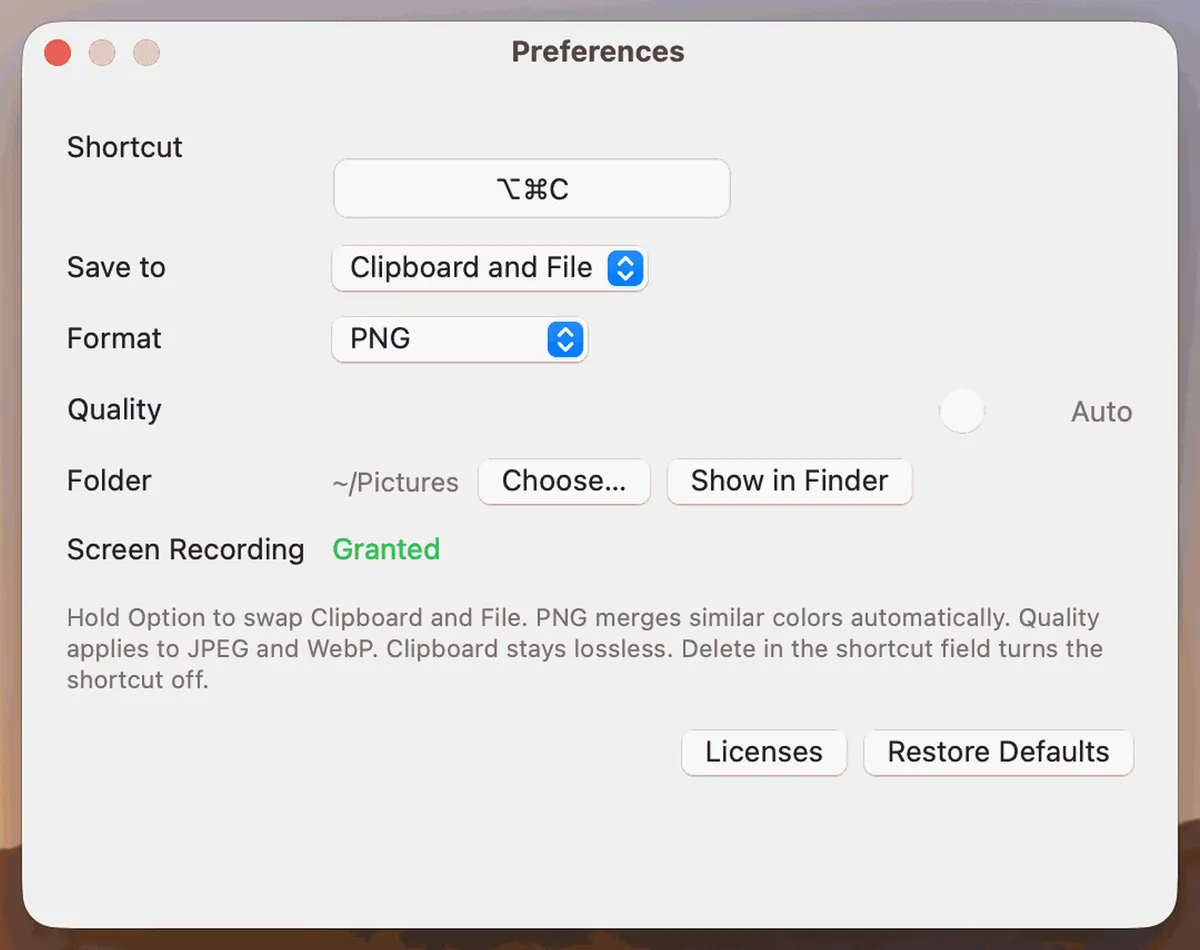
- Save to the clipboard, a file, or both
- PNG, Lossless PNG, JPEG, and WebP
- Press Esc or Cancel to discard the screenshot
How to use it
- After launch, use the camera icon in the menu bar. It is a menu bar app and does not show a Dock icon.
- Press ⌘⌥C, or choose Capture from the menu bar. Drag a region, or hover a window and click. Move the pointer to the display you want.
- Annotate, then save to the clipboard, a file, or both. Esc or Cancel discards the image.
Requirements
- macOS 12 or later.
- Apple silicon (M-series) Mac. Rosetta is not required.
- Opens from the menu bar. No network connection. Free.
Screen Recording
macOS requires Screen Recording permission. Open Preferences from the menu bar. If the status is not Granted, choose Grant Access and allow Simple Snip in System Settings. Then quit the app and open it again.
Contact
Email [email protected] . Privacy policy